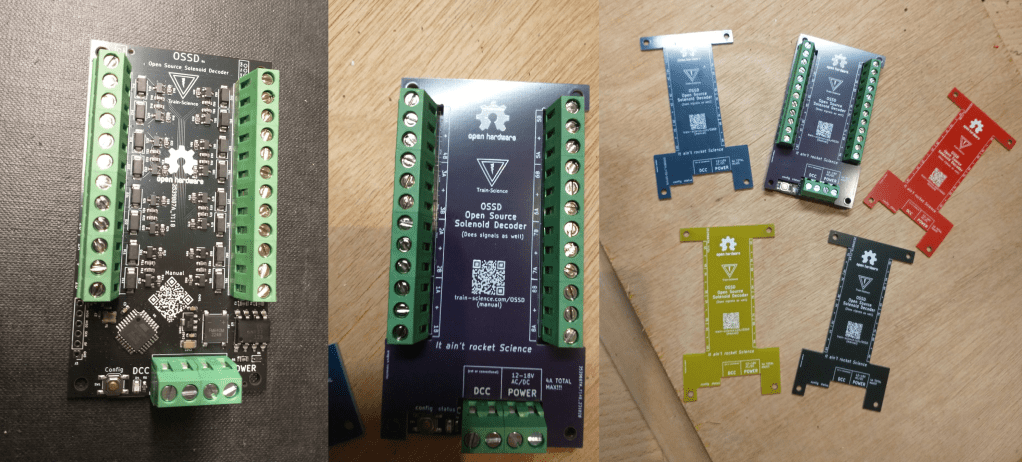
Welcome to my webpage over the OSSD. On this page you’ll find a complete tutorial for ordering a fully soldered DCC decoder for solenoids, signals and other accessories.
As most model railway enthiusiasts know, these kind of decoders are expensive and often cost over €60,-. Well now you get to buy ‘em directly at the source for roughly 1/6th of that price.
I’ll explain how the decoder works and how you can configure and use it in your modelrailway layout.
I will also explain in great details how you can order this decoder directly at the PCB manufactoring plant of JLCPCB. It is by far the cheapest PCB service in the world and they offer excellent quality.
Than I’ll explain how you can program the board with my software turning a lifeless PCB into a fully functional DCC solenoid decoder.
This entire project is 100% open-source. You are free to do with it whatever you want: study, modify, distribute, make, and sell the design. Do so under the licences of the below links.
Index
Commissioning
I’ll first explain how to the decoder works and how you can use it.
Signals, outputs and addresses explained
Outputs
The OSSD is an DCC accessory decoder. It has 16 outputs with which it can switch a numerous amount of accessories. One such accessory or object as I like to call them can be anything. It can be a point motor, it can be a signal, a relay, a smoke generator etc. You can use different kinds of objects on a single OSSD.
The OSSD was originally designed to control point motors but it happens to do a decent job at other items as well. By default all outputs are configured for 8x point motors. And the OSSD will switch with a 100ms pulse
Every object needs a certain amount of outputs. A point motor needs two, a relay need only one and some signals may even use up to eight outputs. Depending on what kind of objects you configure, the total amount of objects may be different. If you only use single output objects, you will have 16 objects. If you use 3 signals with 5 outputs each you will have 3 objects and a spare output.
The OSSD puts the objects’ outputs automatically in a sequential order. If the first object uses 5 outputs, than the second object’s outputs start at the 6th output. This safes you from configuring the output numbers yourself.
Addressing
Every object has one or more DCC addresses, regardless of outputs. You can configure the start address yourself. Like with the outputs, the OSSD will also correctly assign DCC addresses to all objects in a sequential order.
Some objects like signals often need more than one DCC address. Some signals have nice or even more different aspects to show. For every two aspects one DCC address is needed. So if the base address is ten, and the first object uses five DCC addresses than the second object will start at address fifteen.
It is however also possible to configure a unique address per object if desired.
Likewise it is also possible to use only one DCC address per object using the DCC EXT protocol. I myself find it convenient to group signals per five addresses like 10, 15, 20 etc.
Bear in mind that the amount of outputs and the amount of DCC addresses are not related to eachother. A single output object has 3 aspects, that is ON, OFF and blinking. Therefor it needs 2 DCC addresses per object. So if you configure 16 outputs all as single output objects, the OSSD will use 32 DCC addresses. But if you use 8 point motors which have 2 outputs and 1 address each, the OSSD will use only 8 DCC addresses.
Connecting
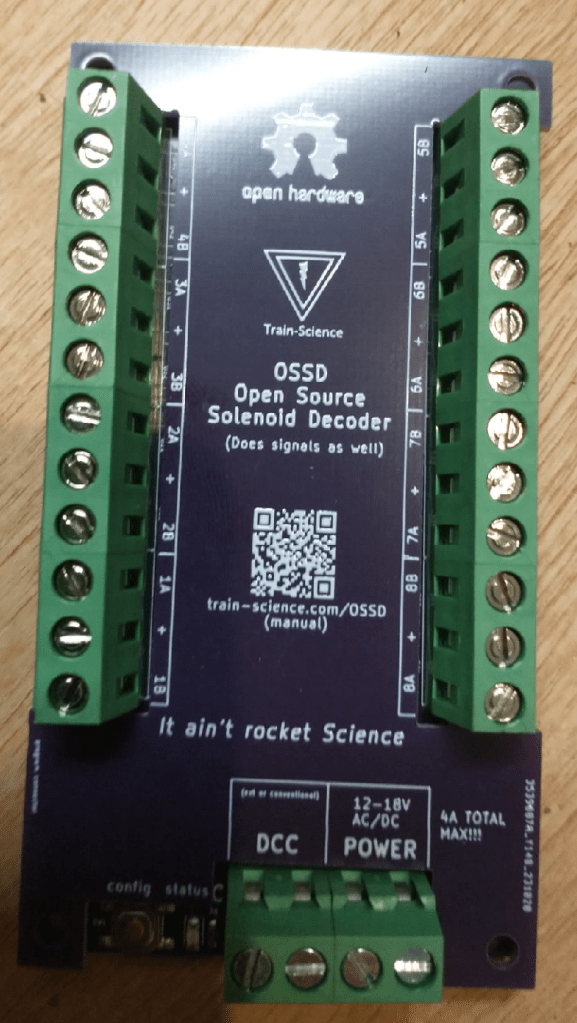
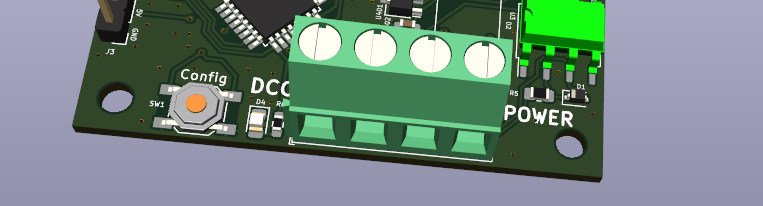
Connecting the board to your modelrailway is fairly simple. The 4P screw terminal has 2 connections for the DCC wires on the left. And 2 connections for power (AC or DC) can be inserted on the right.
I do not recommend using DCC as power source. If the the DCC bus is turned off, the OSSD will forget the states of all his objects. For point motors this does not matter. But if a train causes a short, al your signals will show their default aspect when they are turned on again.
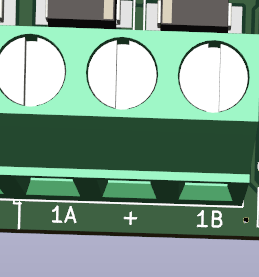
Connecting your point motor is also fairly simple. The decoder has 8 of these connectors. You just put the three wires of your point motor in the screw terminal. The middle wire is the common lead.

Signals
If you use signals with more than 2 outputs, you need to use sequential outputs. Take note that 1B counts as the first ouput and 1A as the second. By this order 2B is the third output 2A is the fourth output, 3B is the fifth etc.
I tried to maintain a certain order in connecting a signal from green to stop. Below are the numbering of the signals. The numbers indicate the order. The order must be maintained from low to high.
You can zoom in on the PDF below if needed.
A connection example of 6 german signals. The orange wires are the + leads of the the signals. Also take note how the DCC addresses are divided and how al the objects are wired.


Configuring
The decoder is easily configurable with the dedicated config button and hand-held throttle. Inserting a number is done by setting a DCC point using your hand-held throttle. It does not matter which in direction you set a point
By giving a short press you can configure the address
With a longer press of one second you can configure the outputs. You can configure the outputs to act as your average double coil driver or as one of the many different signal types.
If you hold down the button for 4 seconds you can enter the the configuration mode. In this mode you can choose between normal DCC and DCC extended messages and you get to chose between sequential addresses or unique addresses per item.
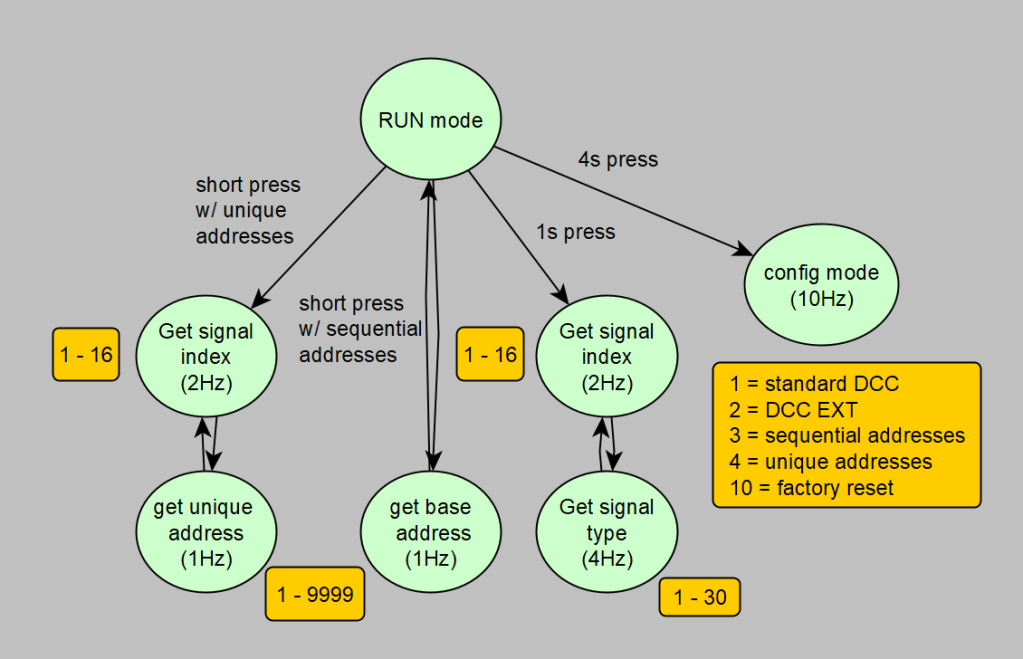
Below there is a flow chart of the config menu. It may help you understand the configuration process.
Set DCC Address
With a short press on the config button you can put the OSSD in ‘get address mode’. How this works depends if you use unique addresses per signal or sequential addresses (default).
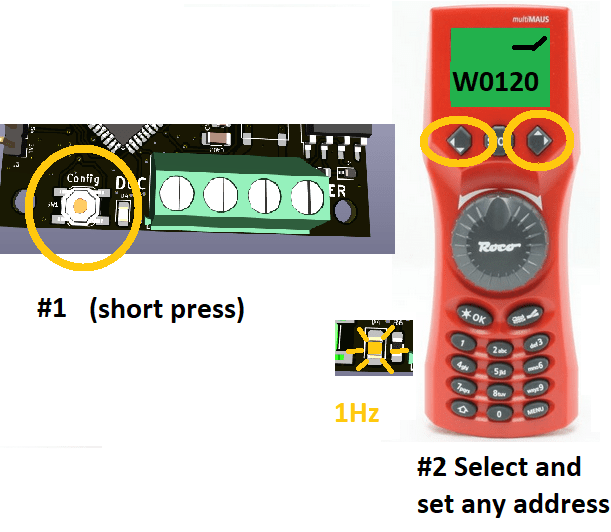
In case of the latter the decoder will listen for the first DCC accessory address. In this mode the LED will blink at 1 Hz. The received address will be coupled to it’s first object. All other objects will get sequential addresses assigned automatically. After the base address is assigned the decoder jumps back to idle/run mode.
In case of unique addreses the LED blinks slightly faster at 5Hz. You first need to select which of the signals is going to get a new address. You can select a signal by setting the appropiate address. When you have selected the signal the LED will blink at 1Hz which means that the OSSD is ready to receive an address.
When you have configured the address the OSSD is immediately ready to configure the next signal. At this point the LED blinks again at 5Hz. This allow you to configure all addresses relative quickly. If you are finished with configuring all addresses you can simply press the config button again and the OSSD goes back to idle/run mode.
Example of setting DCC address 120 as first DCC address.
Configure outputs
By holding down the config button for 1 full second (you can see this when the LED flashes) will allow you to configure the outputs. There are many different presets to chose from. By default the double coil mode for point motors is active.
The LED will flash at 2Hz. At this point you need to select which of your objects (object being a point, single output or signal) you want to configure. You can select a object by setting a point with your throttle. If you set point 1 you wil be able to configure the first object. If you set point 2 you can configure the 2nd object etc.
After you have selected your object, the LED will flash at 4Hz. Now you need to pick the output type or signal type. You need to look up in the table which signal type you want to use. You need to set a switch again with the corresponding address. So if you want to select signal type #4 you just have to set point #4 and that is it.
An example. You just configured the first signal. For the 2nd signal you want to use the the 5th signal type. First you press and hold the configure button for 2 seconds. Than you set point #2 to indicate that you you are configuring the second object and than you can set point #5 directly afterwards.

After having configured an output, the OSSD leaves config mode and you have to press the config button again for 2 seconds to configure another output.
I highly recommend to first write down on a piece of paper what you want to configure. This will make the actual configuring more easy. And you have an oversight of the the used outputs and used DCC addresses. The former is important for wiring the OSSD and the latter is important for configuring your computer program for the correct aspects.
Here follow a few examples of different configuration possibilities.
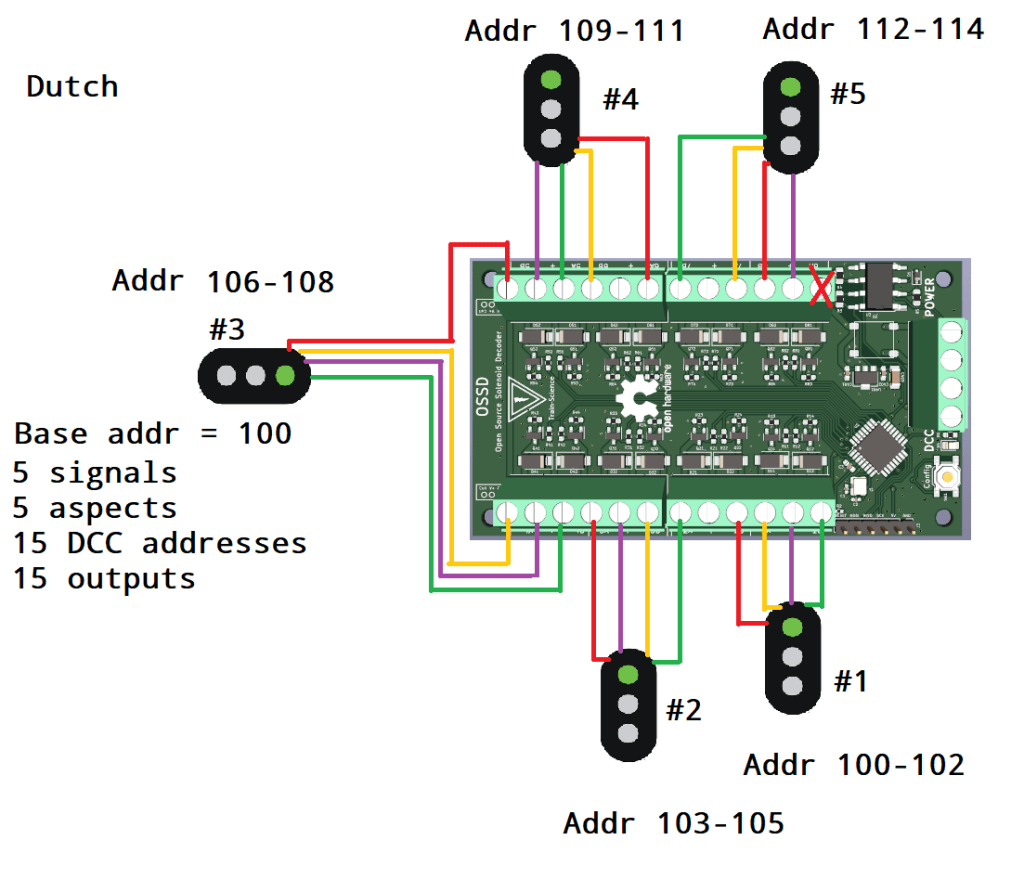
This last example has something interestings. The last 2 outputs are not connected, but they are in use. By default there is still a double coil point motor configured and the outputs will still be controlled whether something is connected or not. You can simply not connect anything and use the address for an other decoder. Or perhaps you want to use the free outputs to control the station or street lighting. You are ofcourse free to configure the 6th and 7th object to be single output devices.
Configuration Mode
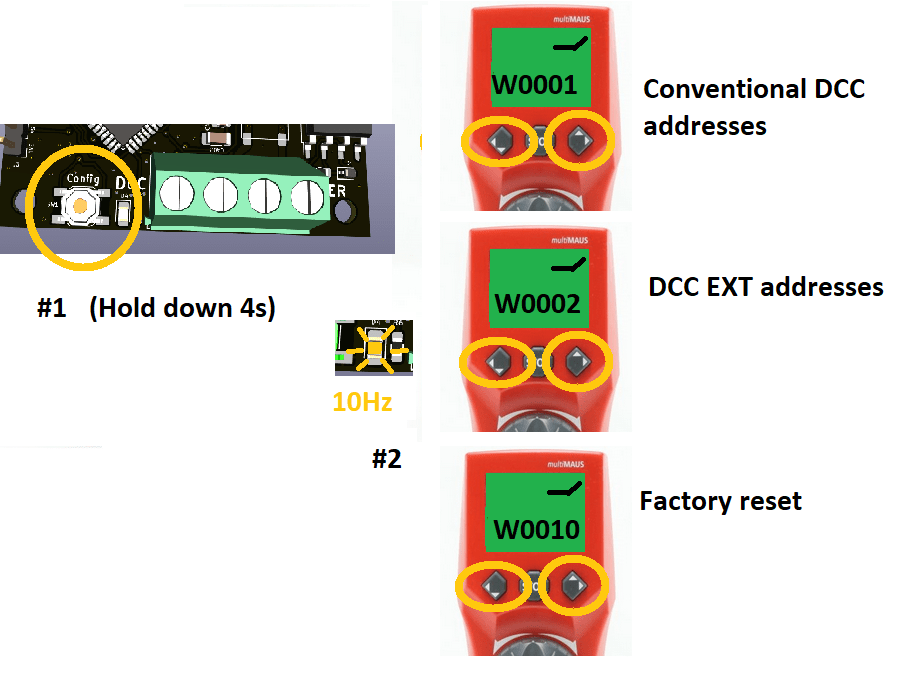
If you hold down the configuration button you can enter the configuration mode. There are only two configurations you can alter. With the DCC addresses 1 and 2 you can disable and enable DCC extended commands respectively. With the the addresses 3 and 4 you can choose between sequential or unique addresses respectively.
The DCC extended protocol will allow you to use just one address per signal. With the extended protocol various aspect numbers can be transmitted under a single address.
By default the OSSD squashes the addresses in a sequential order. You can however give every signal it’s own unique address. This can be usefull if a certain light needs to follow the position of a point. It also allows you to apply a certain order to your own liking.
If you use address 10 you will put the OSSD in factory defaults.
Note. Point motors will always work under conventional DCC addresses. So you can connect signals and point motors to one OSSD, have the signals working under DCC EXT and the points under conventional DCC.
List of supported signal types and aspects
Here follows a list with all different objects types and their aspects. The first three types aren’t signals however. The 1st type is a regular point motor, the 2nd is a single output device and the 3rd type is a dutch AKI.
For every type it is listed how many outputs, aspects and DCC addresses they use. If you spot an error or miss something, please fill in the contact form (and preferbly with a suggestion fix).
This chapter concludes the configuration process. If you have done everything by the book, your OSSD should be fully operational.
Schematics
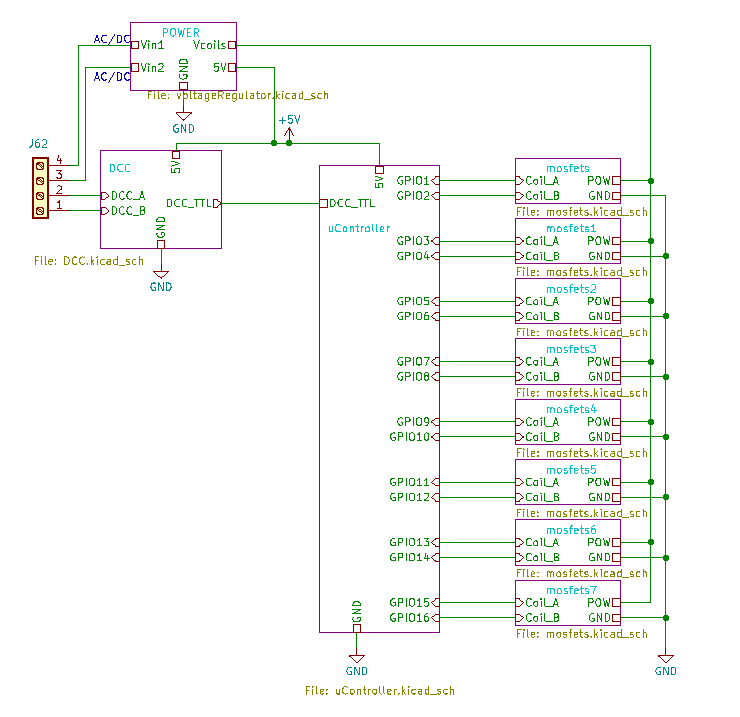
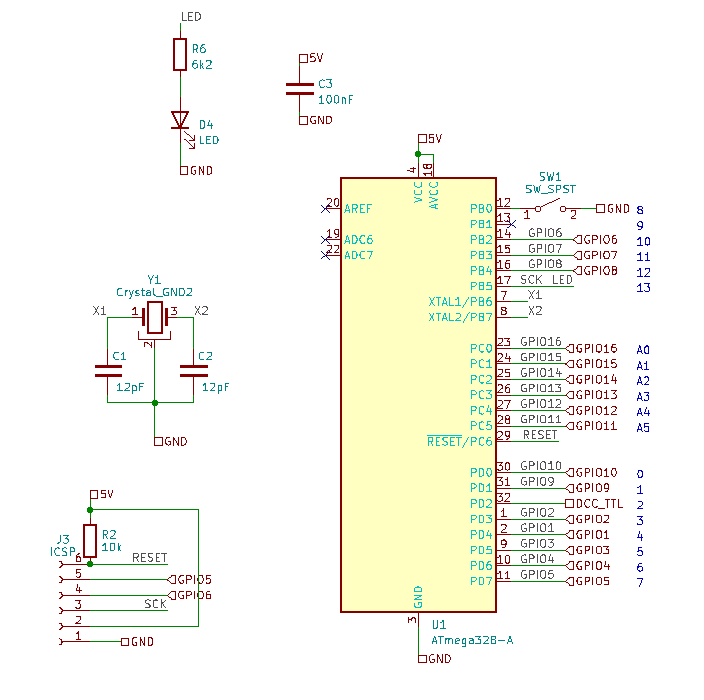
These are are kicad schematic for the DCC decoder. I made use of hierarchial labels and schematic sheets. I’ll explain a little something per sheet.
The root schematic exists out of a uController (atmega328), a DCC decoder circuit, a voltage regulator with rectifier and mosfets to control the solenoids.
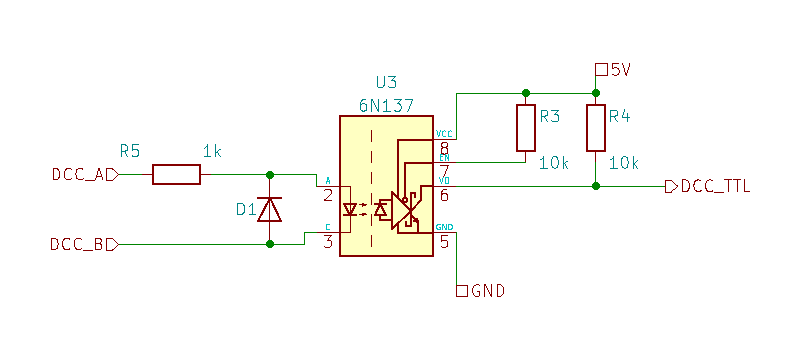
The DCC signals are insulated from the rest of the electronics. I use a 6N137 optocoupler because it is fast enough and is a basic part @JLCPCB.
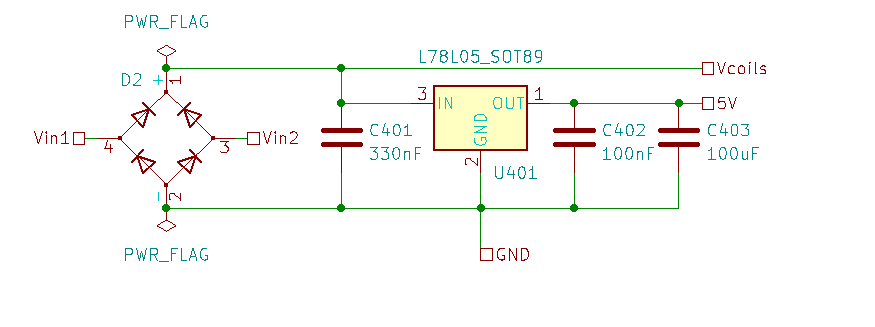
In order to control the point motors. You should use an external power supply. You could use the DCC lines but I don’t recommend this as I have no CDU circuit. The current drawn by your point motors may let your DCC central to go in short circuit. And it is likely you will see all trains’ light flicker.
I use a 5V voltage regulator to supply 5V to the 5V circuit. The incomming power may be either DC or AC. The voltage is rectified and supplied to the coils. The rectifier is limited to just 2A. The total current should not exceed this limit for a long period of time. It should however be safe to switch solenoids of 3A as the switch time is relative short.
In the event that the rectifier dies there are solder pads on the bottom of the board with which you can bypass the rectifier. This does require you to use a DC voltage source.
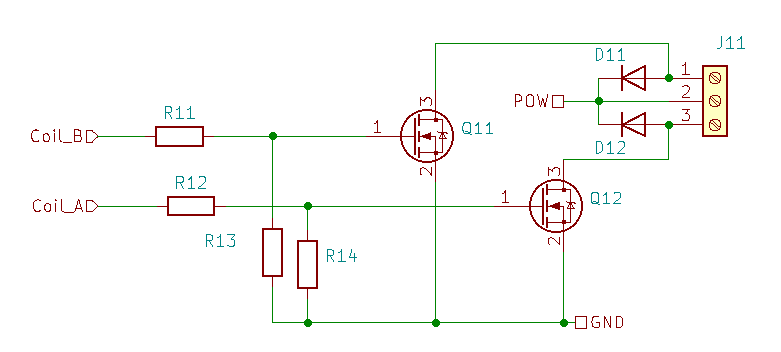
The coils are switched using AO3400A N-channel mosfets. The mosfets are protected with flywheel diodes. The gates are equiped with pulldown resistors and rush-in-current limit resistors. The mosfets are rated to 5.7A max. So they should suffice for most point motors.
The uController is an atmega328. It is equiped with a 16MHz crystal, LED, config switch and a ISP program connector.
Source Code
The program is not really big nor complicated. I’ll explain briefly what it does. If you want to tinker anything, be my guest. If you do not care about software at al I recommend to skip this chapter.
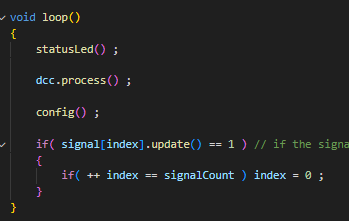
The main loop() of the program only calls a few functions. There are functions for the status led, DCC handling and the configuration menu.
The bottom part keeps updating all signals and or point motors. The if-statement there ensures that in double solenoid mode, only 1 output is activated at any given time to prevent an overload.
The dcc.process() function handles all received DCC packetts. If a valid packett is received, one of two callback function can be called. There is one for an extended protocol packet and one for a regular DCC packet.
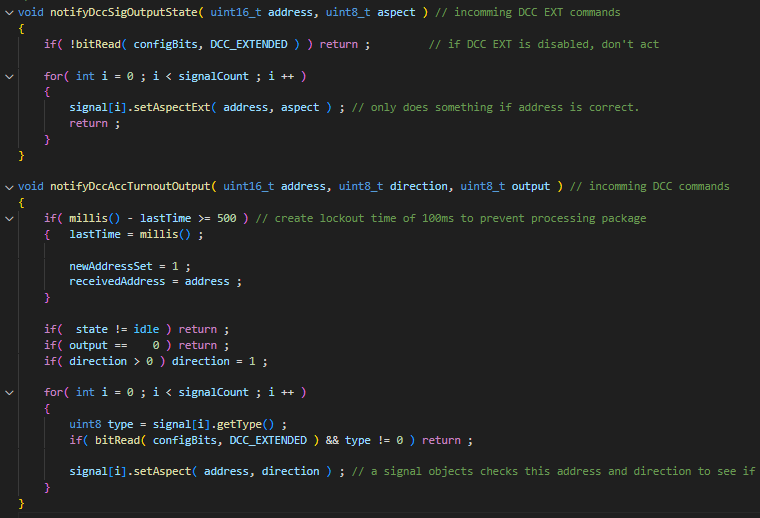
These functions channel the received addresses and direction to the signal objects. The object will determen if they should act on the packett or not.
The variables newAddressSet and receivedAddress are channeled to the config menu. These are responsible for configuring the OSSD.
In an other file name “signal.cpp” you will find a large table with all signal aspects. They should correspond with the PDF on this page. If you want to add or change signal aspects you can do so here. The letter X means blinking. The blinking interval can be calculated with the following formula. If blinking is not used, the value does not matter, you may enter NA if you like.
blinkTime = 3000 / Blinks_per_minute ;
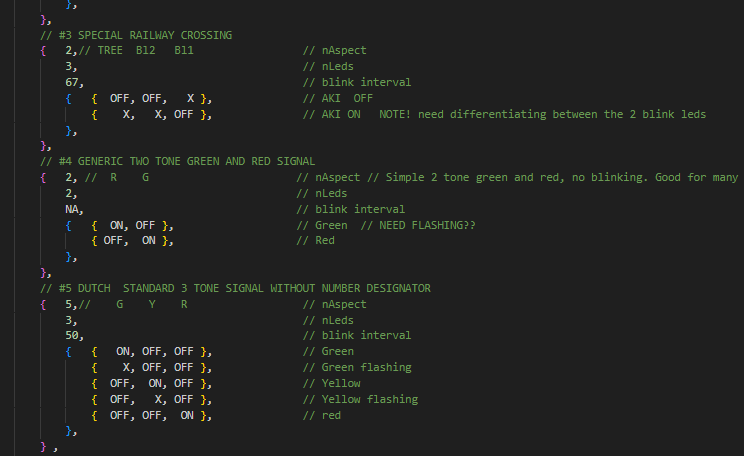
If you make changes, make sure that you maintain the order. All {} and , must be kept clean. It is important that you fill in correct numbers for LEDs and aspects.
Consider a small contribution
Making PCBs like I do isn’t cheap. And DIY projects like this consume alot of time. I have many many more designs I’d like to order and manfactor for you. And I could really use some new decent soldering tools.
If you liked this tutorial, are a happy customer or you simply like what I am doing, please consider supporting me by buying me a cup of coffee. I promise you that every penny will be put to good use.
Contact
If you are in need af anything, have some constructive feedback, would like to order a couple of OSSDs (€34,99), have an idea of your own with which you need some help, miss a certain signal type or have a question, please don’t hesitate to fill in the contact form. And you can ofcourse also leave a message on the bottom of this web page.


 Train Science